
A Gantt chart is a bar chart that shows a project’s tasks on a timeline. Each task is a horizontal bar: where the bar starts is when the task starts, and its length is how long it takes. Read from top to bottom, it tells you what happens, in what order, and when the project ends.
It’s named after Henry Gantt, an American engineer who popularised it in the 1910s to plan factory work. More than a century later it’s still the most common way to plan a project, because it answers the question everyone asks in a meeting: are we on time?
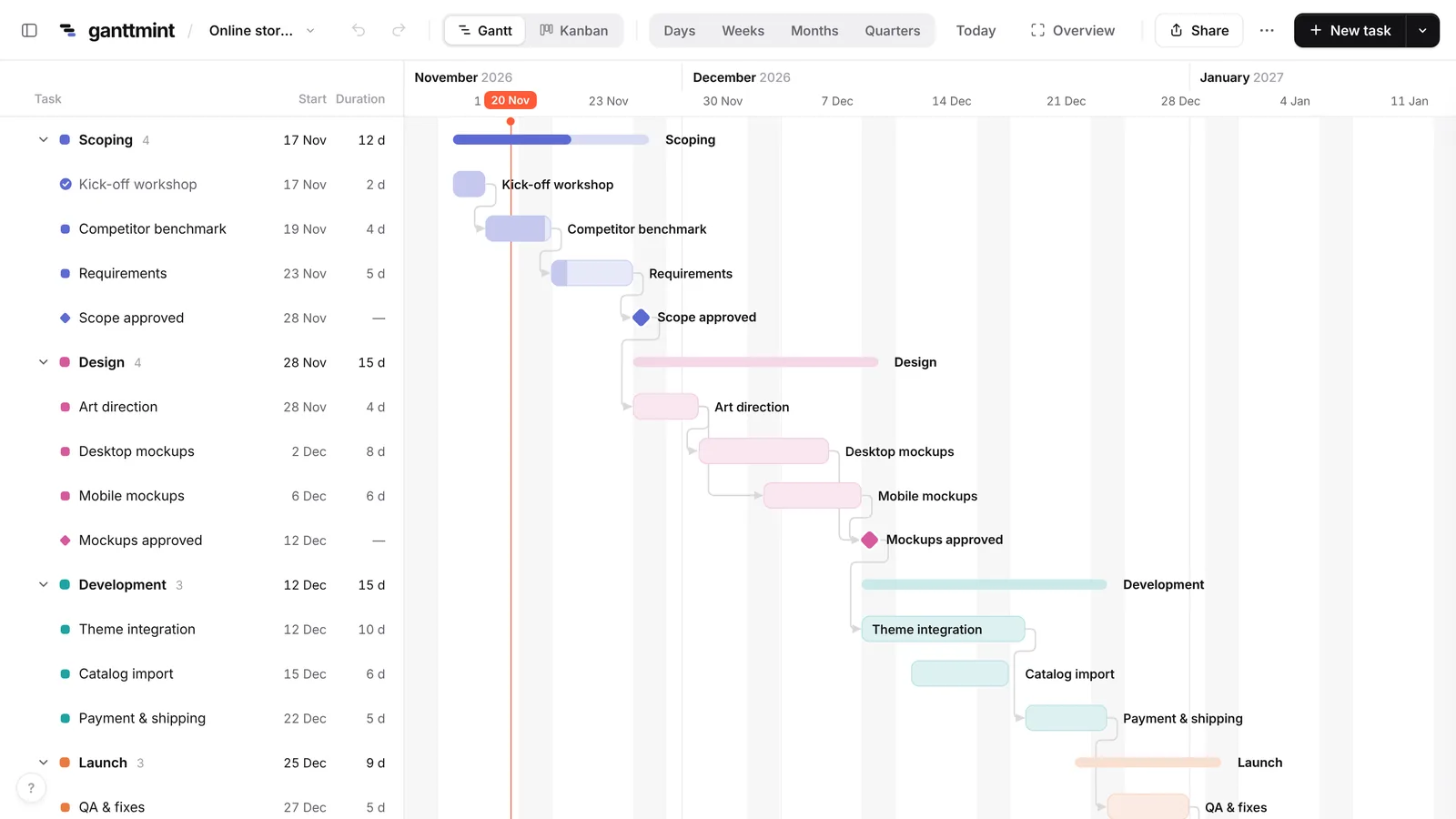
The parts of a Gantt chart
The task list. On the left, one row per task. Tasks are often grouped into phases (for example Design, Development, Launch), so you can fold the detail away and keep the big picture.
The timeline. Across the top, the dates: days, weeks, months or quarters depending on how far you zoom out. A vertical line usually marks today.
The bars. Each bar covers the days a task runs. Many tools fill the bar partly to show progress: a bar filled to 60 % means the task is 60 % done.
Dependencies. The thin arrows between bars. An arrow from task A to task B means B can’t start until A is finished. This is what turns a list into a plan: when A is late, you see straight away which tasks move with it.
Milestones. The small diamonds. A milestone has no duration: it marks a moment that matters, like Designs approved or Launch day.
How to read a Gantt chart in 30 seconds
- Look at the last bar to see when the project ends.
- Find today’s line. Bars to its left should be finished; bars it crosses should be in progress.
- Follow the arrows from the late tasks. The chain of tasks that has no slack is the critical path: if anything on it slips, the end date slips too.
- Check the milestones coming up in the next two weeks. They’re the dates people outside the team care about.
When should you use a Gantt chart?
A Gantt chart shines when order and dates matter: a product launch, a website redesign, an event, a construction project, a marketing campaign. Anything with a deadline and tasks that depend on each other.
It’s less useful for a stream of small, independent tasks with no fixed date, like a support queue. A Kanban board fits that better, with columns such as To do, In progress and Done. Many teams need both: the manager plans in the Gantt, the team works from the board. In Ganttmint they are two views of the same tasks, so nothing has to be copied twice.
Gantt chart vs. Kanban vs. task list
| Gantt chart | Kanban board | Task list | |
|---|---|---|---|
| Shows dates | Yes | No | Sometimes |
| Shows order and dependencies | Yes | No | No |
| Shows who does what now | Partly | Yes | Partly |
| Best for | Planning, deadlines | Day-to-day work | Small projects |
New to boards? Here is what Kanban is and how it works.
How to make a Gantt chart
You have three options:
- In Excel or Google Sheets. It’s possible with a stacked bar chart or conditional formatting. Our step-by-step Excel guide shows both methods, and the Google Sheets guide adds a one-formula trick.
- From a template. Start from a ready-made Gantt chart template (project plan, product launch, website, event), then rename the tasks. To put it on a slide, see how to make a Gantt chart in PowerPoint.
- With an online Gantt chart maker. Ganttmint is free and needs no account. Type a task name, press Enter, drag the bar. Link tasks by dragging from one bar to another, zoom out to months to see the whole project, and share a read-only link with your team.
For the full walkthrough, read how to make a Gantt chart, browse Gantt chart examples, or see how project managers use Gantt charts.
Common mistakes to avoid
- Too much detail. A Gantt chart with 300 tasks of half a day is unreadable. Keep tasks between two days and two weeks, and group them into phases.
- No dependencies. Without links, the chart is a drawing. With links, it updates itself when reality changes.
- Planning once, never updating. A plan is only useful if it reflects today. Update progress once a week, it takes five minutes.
- Forgetting the milestones. They’re what your client or your boss will remember. Put them in, and keep them visible.